The short answer
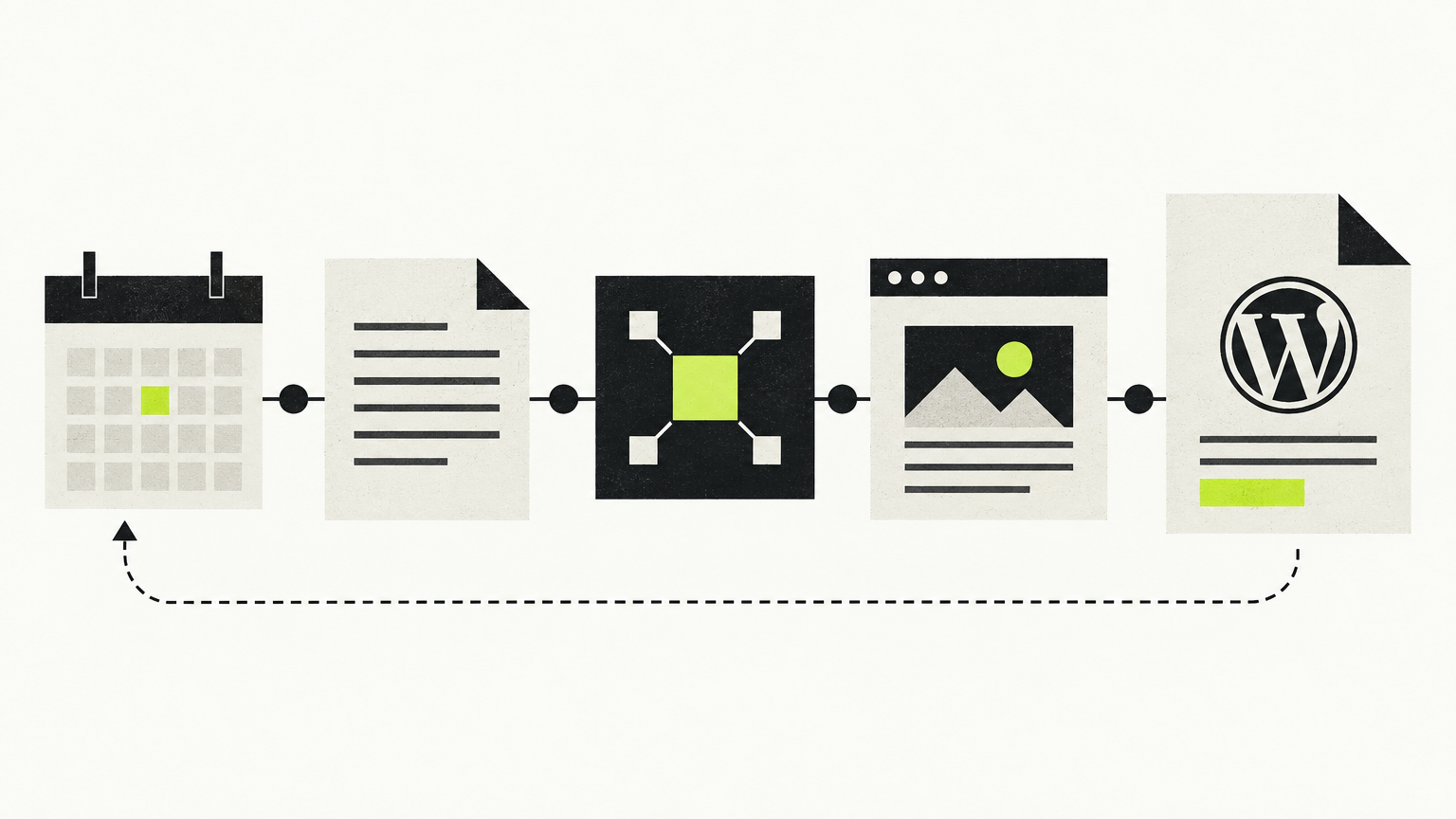
A Make.com WordPress blog automation is, at its core, four things chained together: a trigger (a scheduled check, a new row in a sheet, a webhook), a content source or brief, an AI generation step, and a WordPress publish step that creates the post through the WordPress REST API.
Everything else — images per section, internal links, categories, tags, approval flows — is optional scaffolding bolted onto that spine. That's the useful mental model, because most write-ups blur three very different layers into one "automation": the plumbing, the writing, and the SEO decisions. The plumbing is documented and fairly mechanical. The basic scenario described here doesn't make the SEO decisions for you unless you build that layer yourself.
On the WordPress side, Make's own app documentation lists modules for posts (watch, create, update, delete, get, search), categories, comments, media items, users, tags and taxonomies, plus a generic Make an API call module for anything not covered (Make WordPress app docs). Those are the building blocks a blog pipeline actually uses: create a post, create a media item, and occasionally update a post.
For the AI step, check which model apps are currently available in your own Make account — the app directory changes, and this article deliberately doesn't name modules it can't verify.
Step 1: connect WordPress to Make the way Make documents it
This is where first builds stall, and it's worth being precise: Make's WordPress app does not authenticate with a WordPress Application Password. Make's documentation states that using the WordPress app requires a WordPress site with the Make connector plugin installed and enabled, and that the connection is created with an API key issued by that plugin (Make WordPress app docs).
The documented sequence:
- Install the Make connector plugin. Either download it from the plugin page and upload the ZIP under Plugins → Add Plugins → Upload Plugin, or search for it directly in Plugins → Add Plugins. Then activate it (source).
- Get the API key. After activation a Make item appears in the wp-admin sidebar. Under its General settings tab, click Reveal next to the API key. You can also Regenerate it, enable granular API permissions to scope the key to specific actions, and download or delete the plugin log (source).
- Create the connection in Make. Add a WordPress module, click Create a connection, and supply your WordPress REST API base URL — for example
https://your-site.com/wp-json/— plus the API key (source).
Two configuration details that save debugging time later. First, custom fields do not appear in module output unless you switch them on: in wp-admin go to Make → Custom API fields, select the fields you want, and save (source). Second, the plugin exposes security settings under Make → Security — security logging, content sanitization, rate limiting, request size limits and file upload security (source). Content sanitization matters for a content pipeline specifically: Make describes it as removing potentially harmful HTML tags and attributes from incoming content, so if your generated markup arrives stripped, check that switch before blaming your prompt.
Make also notes that the plugin is not optimised for large websites, and recommends raising the PHP memory limit beyond the default 512 MB if you hit a "memory size exhausted" error (source).
When WordPress Application Passwords are the right credential instead
If your pipeline talks to WordPress through something other than Make's WordPress app — a generic HTTP request, a script, or a third-party publishing service — the credential you want is a WordPress Application Password. It's a core feature introduced in WordPress 5.6 (December 2020) that generates revocable, per-application credentials so you never hand a tool your main account password (WordPress Advanced Administration Handbook).
What to know before you generate one:
- Create it in wp-admin → Users → Profile → Application Passwords, give it a descriptive name, and copy it immediately — it's stored hashed and shown only once (source).
- It authenticates via HTTP Basic Auth: the client Base64-encodes
username:application_passwordinto anAuthorizationheader. Because those credentials can be intercepted if sent unencrypted, WordPress says to always use HTTPS (source). - They're available by default only over HTTPS, and can be disabled or restricted by user or role with the
wp_is_application_passwords_availableandwp_is_application_passwords_available_for_userfilters — which is why the section sometimes vanishes on sites with hardening plugins or must-use plugins (source). - They cannot be used to log into wp-admin through
wp-login.php. They're for APIs and scripts (source).
If authentication fails with a 401 or 403, WordPress's own troubleshooting order is: confirm HTTPS is detected, confirm you're using the Application Password rather than the login password, check whether a plugin has filtered the feature off, and confirm your client or proxy isn't stripping the Authorization header (source).
For credential hygiene: create one per integration, revoke rather than reusing, and rotate after any suspected leak (source). WP-CLI can create, list, update and revoke them over SSH — handy when you're rotating across several client sites (source). The REST API also exposes an application-passwords route family including an /introspect endpoint, and records last_used and last_ip on each credential (REST API Handbook) — which makes it easy to spot an integration that quietly stopped running.
Step 2: pick a trigger that matches your content supply
Three shapes cover almost every blog pipeline.
A queue you control. A spreadsheet of planned topics, read one row at a time, with a "processed" marker written back at the end. Make's operations guide uses a Google Sheets → Watch new rows trigger as its worked example of how polling triggers behave (Make operations docs). This is the most controllable pattern because you decide the topics in advance rather than letting a model invent them.
A scheduled poll of something that changes. Any watch-style trigger. Worth knowing for cost reasons: Make states that trigger modules run once per check to retrieve or check for data, regardless of how many bundles they return (source). The cost lands downstream, not on the trigger.
A webhook or manual run. You submit a topic, the scenario runs once. This is the right starting shape while you're still debugging prompts, because every run is deliberate.
A design note worth taking seriously even though it costs you a second scenario: split "find and queue topics" from "write and publish". When sourcing breaks, publishing keeps working, and you can re-run either half independently.
Step 3: the AI writing layer and the output contract
The generation step is usually one or two model calls. The following is practical build guidance rather than a documented benchmark, so treat it as a recommendation to test in your own scenario.
Two calls tend to beat one: generate an outline first, validate or reject it cheaply, then generate the body from the approved outline. The outline is also the natural place to enforce structure — section count, section headings, the internal links you want included.
Give your scenario the markup job and the model the writing job. Ask for structured fields (a JSON object with a title, a meta description, and one entry per section) and map those fields into your own HTML template inside Make. Models are inconsistent about wrapping output in code fences, adding preambles, or silently switching from HTML to Markdown; a strict field contract makes those failures visible instead of shipping them into post_content. Remember too that the connector plugin can sanitise incoming HTML if you've enabled that option (source), so your template should only rely on markup your site actually accepts.
Feed the prompt explicit inputs: topic, target reader, angle, section list, approximate length, links to include, and the exact output shape. Anything you leave implicit, the model will decide differently on every run.
Step 4: images are where these scenarios get expensive
A single featured image is one extra branch: generate the image, create a media item in WordPress, reference it on the post. Make's WordPress app documents create a media item alongside the post modules, so the upload step is a first-class operation rather than a workaround (source).
One image per section is a different problem, and the reason is arithmetic rather than difficulty. Make's documentation is explicit that a module processes each bundle separately, so each bundle triggers its own module run — meaning bundles in earlier modules have a multiplying effect on everything downstream (source). Six sections means six image generations and six media uploads, each one a separate run with its own failure mode.
Practical order of work: build and debug the text-only pipeline until it publishes reliably, then add the image branch as a second phase.
What the automation does not do for you
A working Make scenario gives you a publishing pipeline. It does not give you:
- Keyword selection with real search-volume and difficulty data. Whatever topic you or the model picks is the topic. Nothing in the chain checks whether anyone searches for it.
- Search-grounded briefs. The model writes from its own priors unless you explicitly fetch and pass in what currently ranks.
- Internal linking as a system. You can hardcode links in a prompt; you can't easily maintain a link graph across sixty posts that way.
- Post-publish maintenance. Nothing revisits an article that landed on page two.
Each of these is buildable. They are separate projects, not extra modules.
Count the operations before you build, not after
Make defines an operation as a single module run to process data or check for new data, and shows each module's operation count in the bubble above it after a run, with credit consumption available as a second figure (Make operations docs). Check the current credit and plan limits inside your own account before sizing anything — this article makes no pricing claims.
The two rules that decide your bill are both in Make's documentation: triggers run once per check regardless of how many bundles they return, and every other module runs once per bundle (source). Make's own worked example is instructive — a scenario whose trigger returned 10 bundles and had three downstream modules consumed 31 operations, and adding a text aggregator so one email was sent instead of ten brought a different run down from 11 operations to 3 (source).
Here is an illustrative, hypothetical count for a text-plus-images article, to show where the arithmetic concentrates. Your own build will differ:
| Scenario stage | Module runs per article (illustrative) |
|---|---|
| Trigger check | 1 per poll, regardless of rows returned |
| Read / prepare the queued brief | 1 |
| Outline call + article call | 2 |
| Parse and aggregate sections | 1–2 |
| Image generation, one per section × 6 | 6 |
| Create a media item × 6 | 6 |
| Assemble body + create the post + mark the row processed | 3 |
| Rough total per article | ~19–20 |
The lever is obvious once you see it: images and per-item iteration drive the count, not the writing. Retries re-execute modules, so failure rates cost you twice. If the total looks uncomfortable, the fixes are fewer images, aggregation before per-item work, or fewer posts.
Quality control before anything goes live
The pattern worth adopting — offered here as a design suggestion, not a documented recipe — is to publish as a draft first and promote it in a second step. Make's WordPress app provides both Create a post and Update a post modules (source), so a review gate costs you roughly two modules: create the draft, then flip its status once someone approves it in whatever list or sheet you already use.
Beyond that, add at minimum:
- a duplicate-topic check against already-processed queue rows;
- a minimum-length or required-field guard that routes thin output to review instead of to publish;
- an error handler on the WordPress module so a failed create doesn't silently consume the row. Make documents error-handling features including error handlers and exponential backoff — set one up in your account rather than relying on the default stop.
Troubleshooting the failures you will actually hit
Make's WordPress documentation names three specific failure modes:
A 404 on the REST API base URL. Make attributes this to WordPress permalinks being set to Plain, which can disable the REST API. The fix: Settings → Permalinks → Post name, save, then load https://your-site.com/wp-json/wp/v2/ in a browser and confirm you get JSON rather than a 404 before re-entering https://your-site.com/wp-json/ in the connection (source).
Stale or empty output. Make connects over the /wp-json/ path, and warns that if a CDN, host cache or caching plugin stores copies of those responses, Make receives outdated or empty output — Watch posts or Search posts miss recent posts, or Create a post returns the error "The WordPress REST API did not return a post ID. The post may not have been created." The documented fix is to exclude any URL starting with /wp-json/ from caching in the CDN, the hosting cache and every caching plugin, clear each cache, then re-run (source). Write requests must never be cached.
Memory exhaustion on large sites. Raise the PHP memory limit beyond the default 512 MB (source).
If you'd rather not start from an empty canvas, Make points to its template gallery for WordPress scenarios (source). Treat any imported template as a sketch: review every module and prompt, and never import credentials with it.
A 30-day test protocol
Don't scale cadence on vibes. This is a suggested evaluation method, not a benchmark — the point is that you write the pass mark down before you start.
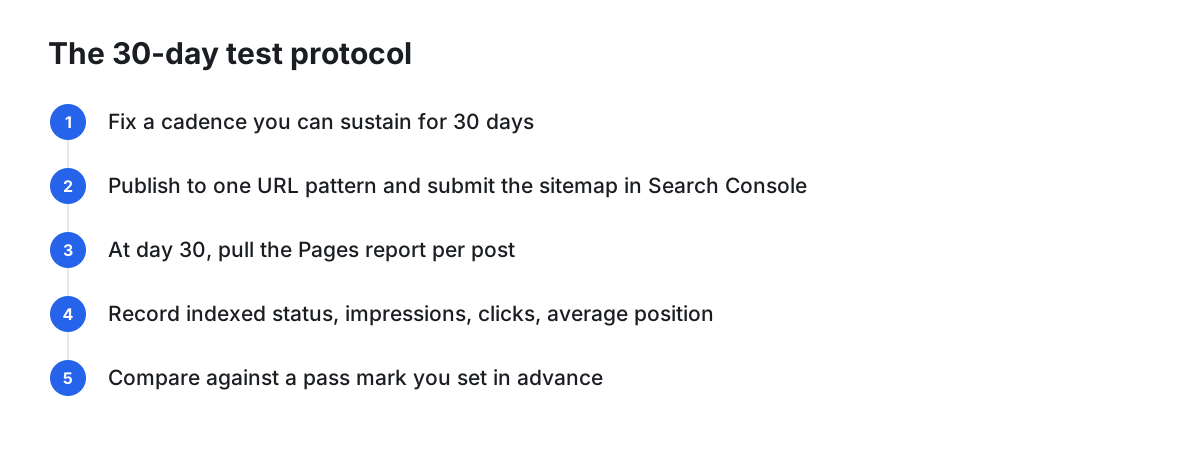
- Fix a cadence you can sustain for 30 days (say, two posts a week) and don't change it mid-test.
- Publish every post under the same URL pattern and submit the sitemap in Google Search Console.
- At day 30, pull the Pages report and record, per post: indexed or not, impressions, clicks, average position.
- Decide in advance what "working" means for you — for instance, a share of posts indexed and a share showing non-zero impressions. Any threshold is your own judgement call; there is no industry number that substitutes for it.
- If posts index but earn no impressions, the problem is topic selection, not the scenario. Fix the keyword layer before adding volume.
Build it or buy it
If your needs match the pipeline above, ordinary off-the-shelf software is enough: Make for the orchestration, WordPress core plus the connector plugin for publishing, and your own editorial judgement for the topics. Nothing in the stack above requires custom development.
Run the decision on five axes: build hours, monthly maintenance (connectors, plugins and models all change), who owns the keyword decisions, metered operation cost at your real volume, and whether you're managing one site or many. DIY wins when the workflow is genuinely bespoke — parsing your own documents, publishing into a custom post type, writing back to a CRM. The trade-off on the other side is ongoing maintenance effort versus the cost of a managed subscription.
Disclosure: PilotScribe is this site's own product, so treat the following as a vendor pitch and weigh it against the build you've just costed out. PilotScribe states that it publishes to a self-hosted WordPress blog using an Application Password (PilotScribe docs); that optimized articles ship to your blog automatically, each with a review window, after which it watches how each one ranks on Google and rewrites weak titles, refreshes fading posts and pushes page-2 articles up (PilotScribe); and that its MCP server lets an AI agent such as Claude, Cursor or Claude Code connect to your account and add and configure a site, pull keywords, generate and publish articles, and connect a domain or CMS from a prompt (PilotScribe MCP docs). Those are company claims, not independent measurements.
FAQ
Do I need a plugin to connect WordPress to Make? Yes, if you use Make's WordPress app. Make's documentation states that using its WordPress app requires a WordPress site with the Make connector plugin enabled, and that the connection uses the API key that plugin generates (source). Application Passwords and the REST API are WordPress core features (WordPress docs), but they're the credential for tools that call the REST API directly rather than for Make's WordPress connector.
How much will a blog automation cost me in operations? That depends on your bundle counts, not your post count. An operation is one module run; triggers count once per check, every other module runs once per bundle (source). Count your modules, multiply per-item steps by the number of items, add headroom for retries, and check the current credit allowances in your own account.
Can I start from a ready-made scenario? Make points to its template gallery for WordPress scenarios (source). Review every module and every prompt before you trust one, and add your own credentials rather than importing someone else's.
What about WooCommerce? Make's WordPress app documents modules for posts, categories, comments, media items, users, tags and taxonomies (source) — store data such as orders and products isn't part of that list. Check Make's app directory for what's currently supported rather than assuming your blog connection covers store events.
My HTML shows up as raw text, or comes through stripped. Why? Raw text is almost always the model returning Markdown, wrapping HTML in a code fence, or adding a preamble — enforce a strict output contract and map structured fields into your own template. Stripped markup is a different cause: the connector plugin's content sanitization option removes potentially harmful HTML tags and attributes from incoming content (source), so check that setting under Make → Security in wp-admin.
Nothing publishes and my scenario shows no post ID. Where do I look first?
Caching in front of /wp-json/. Make documents the error "The WordPress REST API did not return a post ID" and attributes stale or empty output to a CDN, host cache or caching plugin storing REST responses; exclude any path starting with /wp-json/ from caching everywhere, clear the caches, and re-run (source).