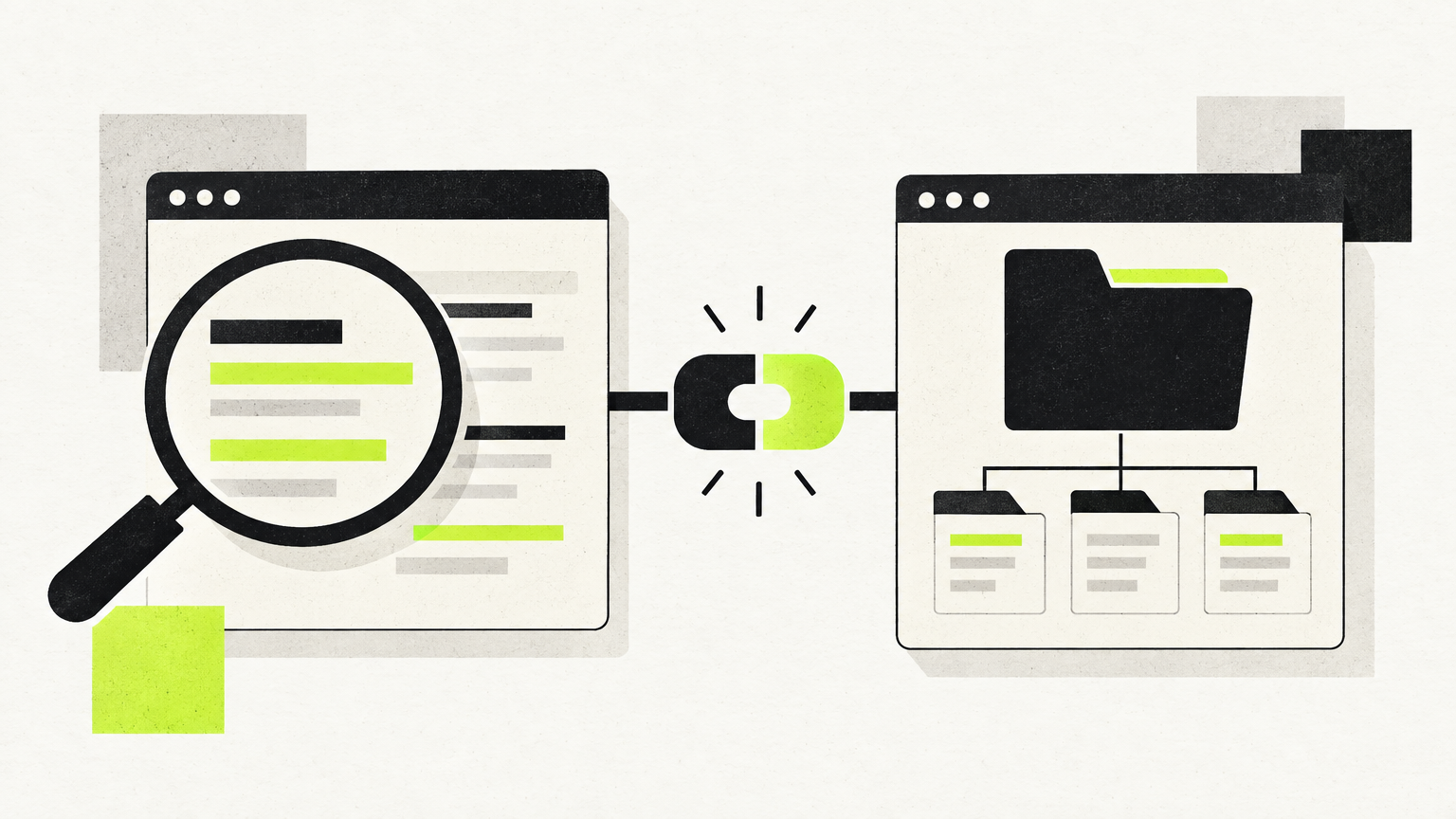
To integrate Google Search Console with HubSpot, install the Google Search Console app from the HubSpot Marketplace: click the Marketplace icon in the top navigation bar, select HubSpot Marketplace, search for the Google Search Console integration, click Install, confirm Install in the pop-up, enter your Google credentials and click Allow. Per HubSpot's documentation, the integration is available on Marketing Hub Professional and Enterprise, Content Hub Professional and Enterprise, and legacy Marketing Hub Basic. Once connected, domains that have content attached to topics in the SEO tool appear in the Connected Sites section automatically; a GSC property type is chosen only when you add an untracked site. The data then shows up in the SEO tool and in the Optimization tab of each page or blog post.
Disclosure: this guide is published by PilotScribe, which sells SEO content automation that reads Google Search Console data. The setup and metric guidance below comes from HubSpot's and Google's own documentation; our own product is discussed only in a clearly marked section near the end.
What the integration actually gives you
HubSpot describes the integration narrowly: it "brings data from Google searches into your SEO tool," providing metrics such as impressions and clicks for specific search terms, plus your average position on Google results pages. In other words, it puts pre-click search performance next to the content you are planning and editing, inside the same tool where you manage topics, pages and blog posts.
What it does not do is tie a search query to an individual contact record. Search Console data is aggregated query- and page-level data; Google does not hand over the query behind an individual visit, so no HubSpot report can show you "the keyword that produced this contact." Treat the integration as better content and editing context, not as closed-loop revenue attribution.
Prerequisites: what you need before you start
Two things to check first: subscription tier and site verification.
Subscription. HubSpot lists the integration as available on Marketing Hub Professional and Enterprise, Content Hub Professional and Enterprise, and legacy Marketing Hub Basic. Tiers that aren't on that list — including Free and Starter — aren't covered.
Search Console access. Confirm you have access to Google Search Console in your own Google account first. HubSpot notes Search Console is a free tool that can be used for any website in your Google account.
Site verification. Google requires a verification step to confirm you own the site. HubSpot states that all HubSpot-hosted websites are verified with Search Console automatically through the file verification method — each HubSpot-hosted site contains a unique file visible only to Google's site verification bot — so after you turn the integration on you should be ready to view data. Ownership can be verified with URL-prefix properties or domain properties, but HubSpot warns that if you verify using domain properties, your site will not be automatically verified, and you'll need to follow Google's verification instructions. If your site isn't hosted on HubSpot, work with your developer to verify ownership in Search Console. One documented edge case: the hubspotpagebuilder domain requires a page published to the domain with the verification meta tag added to that page before Google will verify it. If your site is HubSpot-hosted and using file verification or URL-prefix properties but still isn't verified automatically, HubSpot directs you to contact its support.
Property type matters later, too. HubSpot notes you must set up URL-prefix properties for subdomains to view Google search query data for specific blog posts and pages — relevant if your blog lives on a subdomain.
Connecting and configuring: the documented path
1. Install the app
In HubSpot, click the Marketplace icon in the top navigation bar → HubSpot Marketplace → search for and select the Google Search Console integration → Install → Install again in the pop-up → enter your Google credentials → Allow.
HubSpot flags one thing that surprises people at the consent screen: the Google Apps integration requests permission for all Google tools available in HubSpot. It won't ask for access to contacts, calendar or email unless you already use Sales Hub tools to connect Google Calendar or Gmail.
As part of the integration, HubSpot states the Subscription Service will be able to view, manage and store the properties — the lists of sites and domains you control in HubSpot — and the Search Console data for your connected properties.
2. Check Connected Sites
After connecting, domains with content attached to your topics in the SEO tool appear in the Connected Sites section of the Google Search Console integration. If a domain appears there with an Unverified status, click More > Verify.
3. Add domains Google isn't tracking
For sites that aren't tracked by Google: click the settings icon in the top navigation bar → in the left sidebar, Integrations > Connected Apps → Google Search Console → General Settings tab → in the Untracked Sites section, click Add next to the domain name → choose which GSC Property Type to verify the domain with → Add. HubSpot notes only the user who connected the integration can add untracked sites.
This is also the answer to "can I cover more than one domain?" — there is no separate add-on documented for it. Coverage follows your domains and the property types you verify.
4. Know where the data surfaces
- SEO dashboard: click More, then Marketing > SEO (or Marketing > SEO directly) → Topic Clusters tab → Switch Columns in the upper right → select the Search Console metrics you want → Save.
- Per page or post: go to your landing pages, website pages or blog → hover the item → Performance → Optimization tab → Search Queries in the left sidebar → adjust the Date range dropdown.
- SEO reports: with Marketing Hub or Content Hub Professional and Enterprise, the SEO Analytics tab in the SEO tool displays reports that include Search Console data.
5. If you ever disconnect
HubSpot states that if the integration is disconnected from HubSpot, stored data is purged from your HubSpot account after 90 days. Export anything you want to keep before disconnecting.
Reading the metrics correctly
HubSpot defines the Search Console metrics it surfaces as follows:
- Total pages: the number of pages detected by Google Search Console.
- Total impressions: the number of times a link to your website appears in Google search results. An impression is counted when a result loads on a page, even if it isn't scrolled into view; for infinite-scroll results, the result must be visible. (HubSpot's setup article phrases the same metric as an impression counted each time your content appears in results for your topic phrase.)
- Total clicks: the number of times a visitor selects a link to your website from Google search results. Clicks from one part of the Google platform to another aren't counted.
- Average clickthrough: clicks relative to impressions — clicks divided by impressions, multiplied by 100. HubSpot's setup article adds that if an individual clicks the same link multiple times, it is only counted once.
- Average position: the average ranking of the Google search result linking to your website — specifically, the average position of the top search result linking to your site across all searches, where position 1 is the top position.
- Top search queries: the search terms where your content appears in Google results, visible in the Optimization panel of the page or blog post editor and in the Subtopic content details panel of the SEO tool.
How average position is counted. Only elements that link to external websites are counted as position placeholders, scanned top to bottom and left to right based on language direction. Ads and query refinement links aren't counted — hovering over a link previews the URL, and query refinement links begin with https://www.google.com/search?q, so they're skipped. Carousel images or featured links that do lead to external websites are counted. HubSpot notes that similar-looking results pages can therefore produce different position values.
Why it won't match your own Google search. HubSpot states plainly that the Average position number in your SEO tool won't exactly match what you see searching yourself: device type, location, search history and search filters all change the results.
Why GSC and HubSpot numbers can differ
Discrepancies between Search Console's own interface and HubSpot are expected. HubSpot attributes them to:
- Internal traffic filtering: HubSpot may exclude internal traffic using IP filtering, which removes internal engagement.
- Search Console filters: Google Search Console may exclude traffic based on filters configured on the property.
- Google's own filtering: Google applies additional automated filtering based on its own data models.
- Canonicalization: Search Console assigns data to a canonical URL that represents all variations of a page — desktop and mobile versions, alternate URLs pointing to the same page, and multi-language variations. Clicks, impressions and position from all variations are grouped under the canonical URL.
- Processing lag: HubSpot notes that processing data from Google requires up to two days, so when reviewing your data, only data from two days prior will be accurate.
There is also a platform-level limit worth knowing. Google's Search Analytics API documentation states the API "is bounded by internal limitations of Search Console and does not guarantee to return all data rows but rather top ones," with a per-request rowLimit valid range of 1–25,000 and a default of 1,000. HubSpot doesn't publish which interface it reads; if query data is pulled through that API, the practical implication is that very long-tail queries may simply be absent from the list you see — an inference, not a HubSpot statement.
A practical test: is your integration actually reporting correctly?
Before you make decisions on this data, spend twenty minutes validating it. This is our suggested check, not a HubSpot procedure:
- Pick a date range that ends at least three days ago. HubSpot says only data from two days prior is accurate, so a range ending yesterday will under-report and send you chasing a phantom drop.
- Pick three pages: one high-traffic page on your primary domain, one page on a subdomain (if you have one), and one page that exists in both a mobile/alternate or translated variant.
- For each page, open HubSpot's Performance > Optimization > Search Queries for that date range and note clicks, impressions and position.
- Run the same date range in Search Console, filtered to the page's canonical URL, in the property type that covers it.
- Interpret the gaps against the documented causes. Subdomain page showing nothing in HubSpot? Check you have a URL-prefix property for that subdomain. Numbers lower in HubSpot across the board? IP filtering of internal traffic is a documented cause. Translated or mobile variant showing no separate data? That's canonicalization grouping, working as documented. Only a small set of queries listed? One possible — but undocumented — explanation is the top-rows-only behaviour described above, if HubSpot reads query data through Google's API.
If the gaps don't map to one of those causes, treat the HubSpot figure as indicative and verify in Search Console before acting.
Two analyses worth running (with their caveats)
These are standard SEO analyses, adapted to what HubSpot actually exposes. The thresholds are your call — we deliberately avoid quoting a universal "good CTR" number, because clickthrough varies enormously by query type and position.
1. High-impression, low-clickthrough pages. In the SEO tool, add Total impressions and Average clickthrough via Switch Columns, sort by impressions descending, and compare each page's clickthrough to the median of your own pages at a similar average position. Pages well below your own benchmark are candidates for title and meta description work. Caveat: HubSpot counts repeat clicks on the same link once, so clickthrough is not a raw click-to-impression ratio.
2. Pages sitting just outside the top results. Sort by Average position and look at pages ranking just below your first-page cutoff. These are reasonable refresh and internal-linking candidates. Two caveats before you act: average position is an average of the top result linking to your site across all searches, and it shifts with device, location, search history and filters — so a page's single number can hide a wide spread, and it won't match what you see when you search yourself.
In both cases, make one change at a time and re-measure on a range that excludes the last two days.
HubSpot integration vs. Search Console's own interface
The integration doesn't replace Search Console; it relocates a subset of its data.
| Task | HubSpot integration | Search Console interface |
|---|---|---|
| Query, click, impression, CTR and position data next to your content | Yes — in the SEO tool and each page's Optimization tab | Yes, in a separate interface |
| Topic/cluster-level view and SEO Analytics reports | Yes (SEO Analytics requires Marketing or Content Hub Professional/Enterprise) | No |
| Full query and page exploration, filters, property configuration | Limited to the metrics HubSpot documents | Yes — filters are configured on the property here |
| Property creation and site verification | Connected/untracked site management and a Verify action | Yes — verification instructions and property setup live here |
| Anything outside search performance reporting | No | Yes — the rest of Search Console remains Google-side only |
Practical division of labour: use Search Console to confirm your property setup, verification and filters are right, and to dig into query data in depth; use HubSpot when you want that performance data in front of you while planning topics or editing a page.
When ordinary tools are enough — and when automation is a conditional option
For many teams, the built-in tools may be enough. Search Console is free for any site in your Google account, HubSpot's integration is included in the subscription tiers listed above, and the two together cover the full loop of "see what ranks, edit the page, re-measure after two days." If you publish a handful of pages a month, a recurring calendar reminder and the checks in this article may be all you need.
Automation only becomes a reasonable consideration if the manual loop is genuinely the bottleneck — dozens or hundreds of URLs, titles that never get revisited, refreshes that keep slipping. Publisher's product, disclosed: PilotScribe states that when you connect Search Console, it "checks how every article actually ranks — every single day — then rewrites weak titles, refreshes fading posts, and pushes page-2 articles up," and that it publishes into a CMS including HubSpot. Those are the company's own claims about its service, not independently verified results, and no outcome is implied. If you evaluate any tool in this category, including ours, test it against the same discipline described above: a date range that excludes the last two days, one change at a time, and a comparison back to Search Console.
FAQ
How fresh is the data in HubSpot?
HubSpot states that processing data from Google requires up to two days, and that when reviewing your data, only data from two days prior will be accurate. Judge changes on ranges that end at least two days ago.
Can I cover more than one domain?
Yes. Domains with content attached to your topics appear automatically under Connected Sites, and domains Google isn't tracking can be added under Settings > Integrations > Connected Apps > Google Search Console > General Settings > Untracked Sites, where you choose the GSC property type to verify with. HubSpot notes only the user who connected the integration can add untracked sites. No separate add-on is documented for this.
Is the integration free?
Search Console itself is free for any website in your Google account. The HubSpot integration is a feature of the listed subscriptions — Marketing Hub Professional and Enterprise, Content Hub Professional and Enterprise, and legacy Marketing Hub Basic — so access depends on your tier.
Why doesn't my average position match what I see on Google?
HubSpot says that's expected: location, search history, device type and search filters change results every time you search. Position is also only counted against elements that link to external sites, with ads and query refinement links skipped.
What happens to the data if I disconnect the integration?
HubSpot states that stored data is purged from your HubSpot account 90 days after the integration is disconnected.
Can I see which search query produced a specific contact?
No. Search Console provides aggregated query and page data; it does not attach a query to an individual visitor, so there is no HubSpot report that maps a query onto a contact record.
Sources
- Turn on the Google Search Console integration in HubSpot — HubSpot Knowledge Base
- Understand Google Search Console metrics in HubSpot — HubSpot Knowledge Base
- Search Analytics: query — Google Search Console API documentation
- PilotScribe — publisher's product claims, cited as such