Automating a Webflow blog means three things working together: a CMS Collection whose fields cover every on-page SEO element, a Webflow Data API token with CMS access, and a tool or script that creates Collection Items and then publishes them. Webflow's Data API is a REST API with dedicated resources for CMS Collections, Collection Fields and Collection Items, authenticated with a bearer token (Webflow Data API introduction). Once the schema and the template bindings are right, every automated article renders its title, meta description, headings and links into the right tags without anyone opening the Designer — whether those values are any good still depends on what the generator writes and on the checks you run.
The hard part isn't the API call. It's making sure the fields your generator writes into actually feed the tags Google reads — and that nothing silently lands as an unpublished draft with a duplicate slug.
Disclosure: this guide is published by PilotScribe, which sells an automated SEO content service. The platform-neutral advice below comes first; the section on hosted options names our own product and is clearly marked.
What the Webflow API actually gives you
Before designing anything, it helps to know the boundaries of the platform:
- Authentication is a bearer token (
Authorization: Bearer <token>), and endpoints declare required scopes — reading a Collection Item, for example, requires theCMS:readscope (Get Item reference). The CMS resource exposes bothcms:readandcms:write, so a publishing pipeline needs the write scope registered on its token (scopes reference). - Collection Items exist in staged and live variants, and the CMS section of the API exposes List, Get, Create, Update, Delete and Publish Items operations for staged Collection Items (Get Item reference), alongside a separate Publish Site endpoint (API reference index).
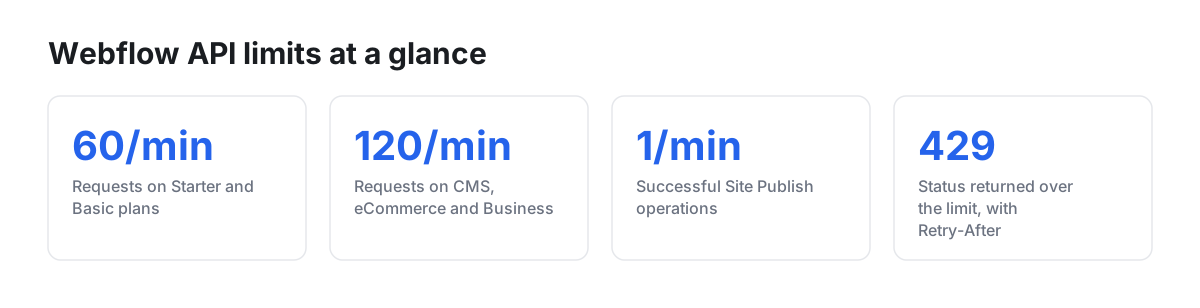
- Rate limits depend on your site plan: 60 requests per minute on Starter and Basic, 120 on CMS, eCommerce and Business, custom on Enterprise — applied per API key. Exceeding it returns
429 Too Many Requestswith aRetry-Afterheader, and every response carriesX-RateLimit-RemainingandX-RateLimit-Limit(rate limits). - Site Publish is limited to one successful publish per minute (rate limits). That single line should shape your pipeline: batch your publishes, don't fire one per article.
- Webhooks exist so you don't have to poll the API waiting for something to finish — Webflow explicitly recommends them over aggressive polling as a way to stay inside the limits (rate limits).
Step 1 — Design the Collection schema for SEO, not just for layout
The API writes into fieldData, a key/value object whose keys are your field slugs. The documented example response shows exactly what that looks like in practice: name, slug, a rich-text field containing HTML, an image field returned as an object with fileId and url, and reference fields such as category and author returned as item IDs, not names (Get Item reference).
That has a direct consequence: any field you forget to create cannot be filled later by automation without editing the Collection. Build the full schema before the first automated post.
The table below is a suggested starting schema, not a Webflow standard — field names and types are yours to choose.
| Purpose | Field type | Example fieldData key |
What the generator supplies |
|---|---|---|---|
| Article title / H1 | Plain text | name |
The headline, written for the target query |
| URL | Slug | slug |
Lowercase, hyphenated, unique |
| Body | Rich text | post-body |
HTML with h2/h3, paragraphs, lists, links — no h1 |
| Excerpt / summary | Plain text | excerpt |
1–2 sentences for cards and listings |
| SEO title | Plain text | seo-title |
Title tag, distinct from the H1 when needed |
| Meta description | Plain text | meta-description |
A short unique summary per article |
| Featured image | Image | main-image |
Object with fileId / url |
| Image alt text | Plain text | main-image-alt |
Descriptive alt, bound in the template |
| Category | Reference | category |
The item ID of a category item |
| Author | Reference | author |
The item ID of an author item |
| Publish date | Date | published-on |
ISO date string |
| Canonical override | Plain text / Link | canonical-url |
Empty by default; used only for syndication |
Field slugs are site-specific. Don't guess them — read them from the Collection Fields resource listed in the API reference (reference index) and store the mapping in your pipeline config.
Two details deserve attention. First, the documented image field returns only fileId and url, so if your template needs alt text, plan an explicit field for it rather than assuming it rides along. Second, rich text fields can contain Webflow component instances expressed as <wf-component> markup, with its own grammar and write constraints (Get Item reference) — one more reason to send clean, predictable HTML from your generator instead of arbitrary markup.
Step 2 — Bind the fields to the Collection page template
Automation only pays off if the template turns fields into tags. In the Collection page settings, bind:
- the title tag to
seo-title(falling back toname), - the meta description to
meta-description, - the Open Graph image to
main-image, - the H1 element to
name— and make sure the rich text body never contains a second H1, - alt text on the featured image element to
main-image-alt, - breadcrumbs and "more in this category" lists to the
categoryreference.
Do this once and every future item inherits it. Because the API can only write into fields that already exist, defining separate SEO title and meta description fields before the first automated run is the difference between a template that fills itself and a backfill job later.
Step 3 — Wire the publishing step
Creating an item and making it live are different operations. The API separates staged items from live items, exposes a Publish Items endpoint, and models draft state with an isDraft boolean whose combination with lastPublished determines the status shown in the Webflow UI (Get Item reference).
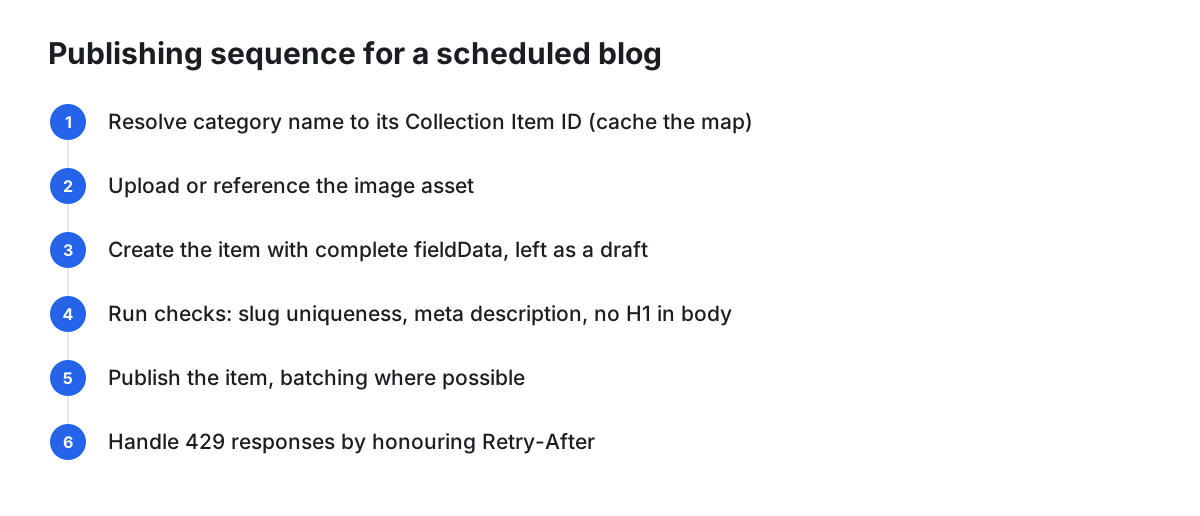
A workable sequence for a scheduled blog:
- Resolve the category name to its Collection Item ID (cache this map).
- Upload or reference the image asset.
- Create the item with complete
fieldData, left as a draft. - Run automated checks (slug uniqueness, meta description present, no H1 in body).
- Publish the item — batching multiple items into one call where possible, given the one-publish-per-minute ceiling on site publishes and the per-minute request limits tied to your plan (rate limits).
- Handle
429responses by honouringRetry-Afterrather than retrying immediately. Webflow's own SDK implements exponential backoff; if you're not using it, build equivalent retry logic yourself (rate limits).
Step 4 — Decide what stays human
Automate the mechanical work: field population, slug generation, image attachment, scheduling, publishing. Keep humans on keyword selection and intent mapping, brand facts and product claims, internal links to money pages, and a final approval before go-live. A draft-first pipeline gives you that gate for free, because isDraft is part of the item model rather than something you have to simulate.
SEO rules the pipeline should not skip
These are editorial conventions, not platform requirements — but they're the ones that break most often once publishing is unattended:
- One dominant URL per intent. Two automated posts targeting the same query compete with each other.
- Unique slugs. Collisions are a common automation failure; check before creating, not after.
- Unique meta descriptions. A template string with the title swapped in is technically "filled" and practically useless.
- Internal links inside the body, not only in the template rail.
- Real alt text, not the filename.
- Depth over volume. Near-duplicate CMS pages built only to hit a keyword tend to be the failure mode of templated publishing; give each entry at least one genuinely differentiating block.
Categories: use a reference field, not free text
Pair your blog Collection with a Categories Collection and link them with a reference (or multi-reference) field. The reason is visible in the API response format: reference fields store Collection Item IDs, so category comes back as a string like 62b720ef280c7a7a3be8cabf rather than a label (Get Item reference). For automation the practical benefit is stability — your pipeline writes a known ID, so a typo can't spawn a new orphan category. Treat the resulting category pages as real pages worth some copy, not just link lists.
Four ways to build the pipeline
| Approach | Setup effort | Control over fields | Review workflow | Who maintains it |
|---|---|---|---|---|
| Manual in Webflow Editor | None | Total | Built in | You, every post |
| No-code automation with a Webflow CMS action | Low–medium | Limited to the connector's supported fields | Depends on the tool | You + the connector vendor |
| Custom script on the Data API | Medium–high | Complete | Whatever you build | Your developer |
| Content platform with native Webflow publishing | Low | Depends on the platform's field mapping | Depends on the platform | The vendor |
If you go the no-code route, verify against the connector's own documentation which Webflow fields it can write, whether it can set reference fields by ID, and whether it triggers a publish or only creates a draft — those capabilities vary and shouldn't be assumed.
When manual publishing is still the right answer: a handful of posts a month, bespoke layouts per article, or a blog where each post is a design artefact. Automation earns its keep on repetition, and a scripted pipeline you have to debug is worse than fifteen minutes in the Editor.
When a script beats a product: you already have a developer, your schema is unusual, or you need the generator and the CMS write to live inside an existing system. The Data API is fully documented and the operations you need — create, check, publish — are a handful of endpoints.
If you'd rather not build it
Publisher's note: PilotScribe is our own product, so treat this section as vendor description rather than neutral evaluation.
If you want the pipeline hosted rather than assembled, PilotScribe's documentation states it can publish into a Webflow CMS collection using an API token (PilotScribe docs), and the company says articles ship automatically with a review window before each one goes live (PilotScribe). Those are company claims, not independently verified results. Before committing to any hosted tool — ours included — confirm with the vendor which specific fields it maps (SEO title, meta description, slug, featured image, category reference) against the schema above, since field coverage is what determines whether your template bindings actually fill.
Pre-launch QA checklist
Publish two test articles, then verify:
- Both slugs are unique and human-readable.
- View source shows the correct
<title>and a unique<meta name="description">. - Exactly one
<h1>, withh2/h3nesting underneath. - The featured image renders and has meaningful alt text.
- Body contains at least one internal link to a relevant page.
- The category reference resolved to the right item, and the category page lists the post.
- The items show as published — not staged drafts — in Webflow.
- Both URLs appear in the sitemap and pass a URL inspection in Search Console.
- The canonical points at the post itself.
- Your pipeline logged the API responses, including any
429s and theX-RateLimit-Remainingheader.
Ongoing maintenance
Automation removes the production bottleneck, not the editorial one. Watch indexation and query-level performance in Search Console, refresh underperformers instead of stacking new near-duplicates on top of them, and pick a cadence you can sustain without exhausting the review step. A weekly rhythm that gets genuinely reviewed beats a daily one that nobody reads.
FAQ
Does creating a Collection Item via the API publish it?
Not necessarily. The API distinguishes staged items from live items and provides a dedicated Publish Items endpoint; the isDraft flag combined with lastPublished determines the status shown in the Webflow UI (Get Item reference).
How many API requests can my pipeline make?
Sixty per minute on Starter and Basic plans, 120 on CMS, eCommerce and Business, custom on Enterprise — per API key. Over the limit you get a 429 with a Retry-After header (rate limits).
Can I publish the site after every article? Site Publish operations are limited to one successful publish per minute (rate limits), so batch publishing is the safer design for bulk runs.
Which scopes does my token need?
Webflow's CMS resource exposes cms:read and cms:write, and each endpoint lists its required scopes in its description — Get Item, for instance, requires CMS:read (scopes, Get Item reference). Publishing the whole site touches the Sites resource, so check those endpoints too and request only what you need.
How do I set the category automatically?
Reference fields store Collection Item IDs — the documented example shows category as an ID string (Get Item reference). Fetch your category items once, cache the name-to-ID map, and write the ID.
How do I avoid a duplicate H1?
Bind the H1 element in the template to the name field and configure your generator to start the rich text body at h2. Add a check to your QA step that fails any item whose body HTML contains <h1.